Installing MDAC/Jet
If you are experiencing problems installing or launching
Hallmark Card Studio,
it may be caused by a corrupt or failed installation of the
Microsoft MDAC or JET
system components. Please try the following:
For All Versions of Windows
Except Windows XP SP2:
Once the file has been downloaded, launch the program
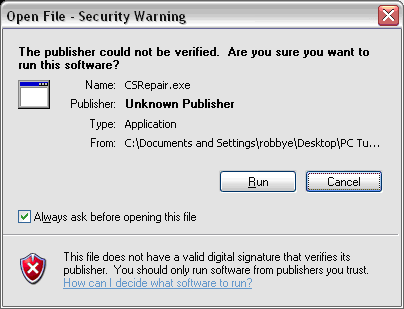
by double-clicking on it. You may receive a warning
message similar to the following:
Click on the Run button.
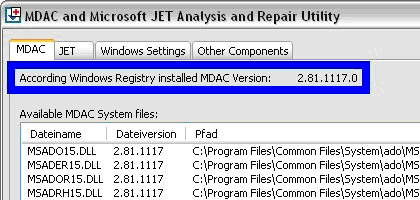
Verify the window is showing the same information
as the following in the blue box:
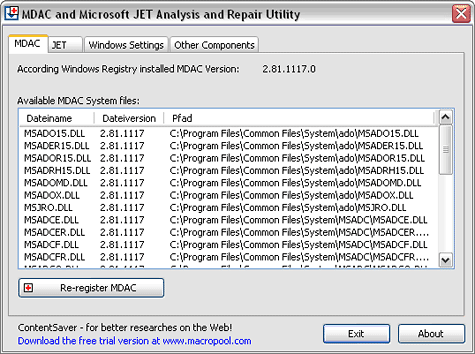
Make sure the following files are listed with the
matching version numbers in the
window that shows “Available MDAC System files”:
MSADO15.DLL
2.81.1117
MSADER15.DLL
2.81.1117
MSADOR15.DLL
2.81.1117
MSADRH15.DLL
2.81.1117
MSADOMD.DLL
2.81.1117
MSADOX.DLL
2.81.1117
MSJRO.DLL
2.81.1117
MSADCE.DLL
2.81.1117
MSADCER.DLL
2.81.1117
MSADCF.DLL
2.81.1117
MSADCFR.DLL
2.81.1117
MSADCO.DLL
2.81.1117
MSADCOR.DLL
2.81.1117
MSADCS.DLL
2.81.1117
MSADDS.DLL
2.81.1117
MSADDSR.DLL
2.81.1117
MSDAPRST.DLL
2.81.1117
OLEDB32.DLL
2.81.1117
MSXACTPS.DL
2.81.1117
MSDAENUM.DLL
2.81.1117
MSDAURL.DLL
9.2.1117
MSDATT.DLL
2.81.1117
MSDASQL.DLL
2.81.1117
MSAOSP.DLL
2.81.1117
MSDAORA.DLL
2.81.1117
MSDAPS.DLL
2.81.1117
MSDADC.DLL
2.81.1117
MSDAER.DLL
2.81.1117
NOTE: If the versions do not
match the table above, or files from the table
above are missing, please go to the MDAC/JET
File Mismatch section below.
If the versions match correctly and all the files
are there, click on the Re-register
MDAC button at the bottom
left of the screen.
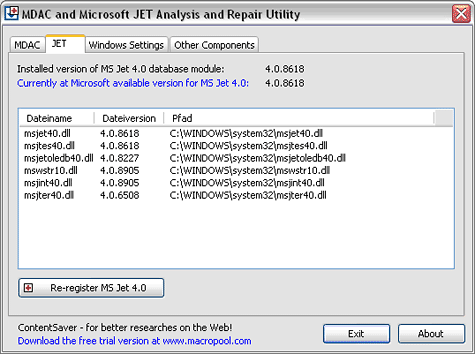
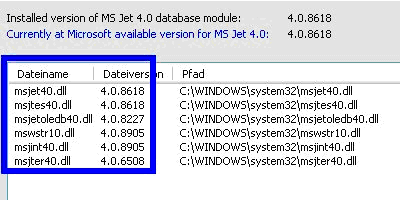
Now, click on the JET tab
located at the top of the screen. You should see
a screen similar to the following:
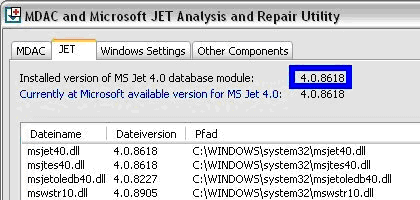
Verify that this window is showing the same information
as the following in the
blue box:
Make sure the following files are listed with the
matching version numbers in the
blue box:
NOTE: If the versions do not match the blue box
above, or files from the blue box above are missing,
please go to the MDAC/JET
File Mismatch section below.
If the versions match correctly and all the files
are there, click on the Re-register
MS Jet 4.0 button at the bottom left of the
screen.
Click on the Exit button
to close the CS Repair window. You should now be
able to launch and use Hallmark Card Studio.
MDAC/Jet File Mismatch
If for some reason the versions do not match the table(s)
mentioned previously, or
files from the table(s) above are missing, and you are running
XP Service Pack 2:
Open the Start menu
and choose Settings -> Control
Panel.
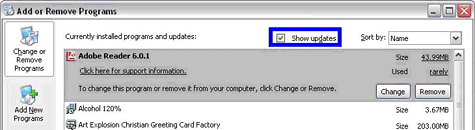
Open Add/Remove Programs.
Click the Show Updates checkbox
at the top of the screen.
Scroll down and select Windows
XP Service Pack 2. If this is not listed
with the
other programs after clicking the Show
Updates box, please see the note below.
Click the Remove button.
Once Service Pack 2 has been uninstalled, update either
MDAC or Jet, depending on
which one(s) had the mismatch or missing files.
NOTE: If Windows XP Service
Pack 2 is not listed after clicking the Show Updates
box, then Service Pack 2 was integrated with Windows
XP at install time. Unfortunately, in this situation,
the only fix that we are aware of is to reinstall Windows.